
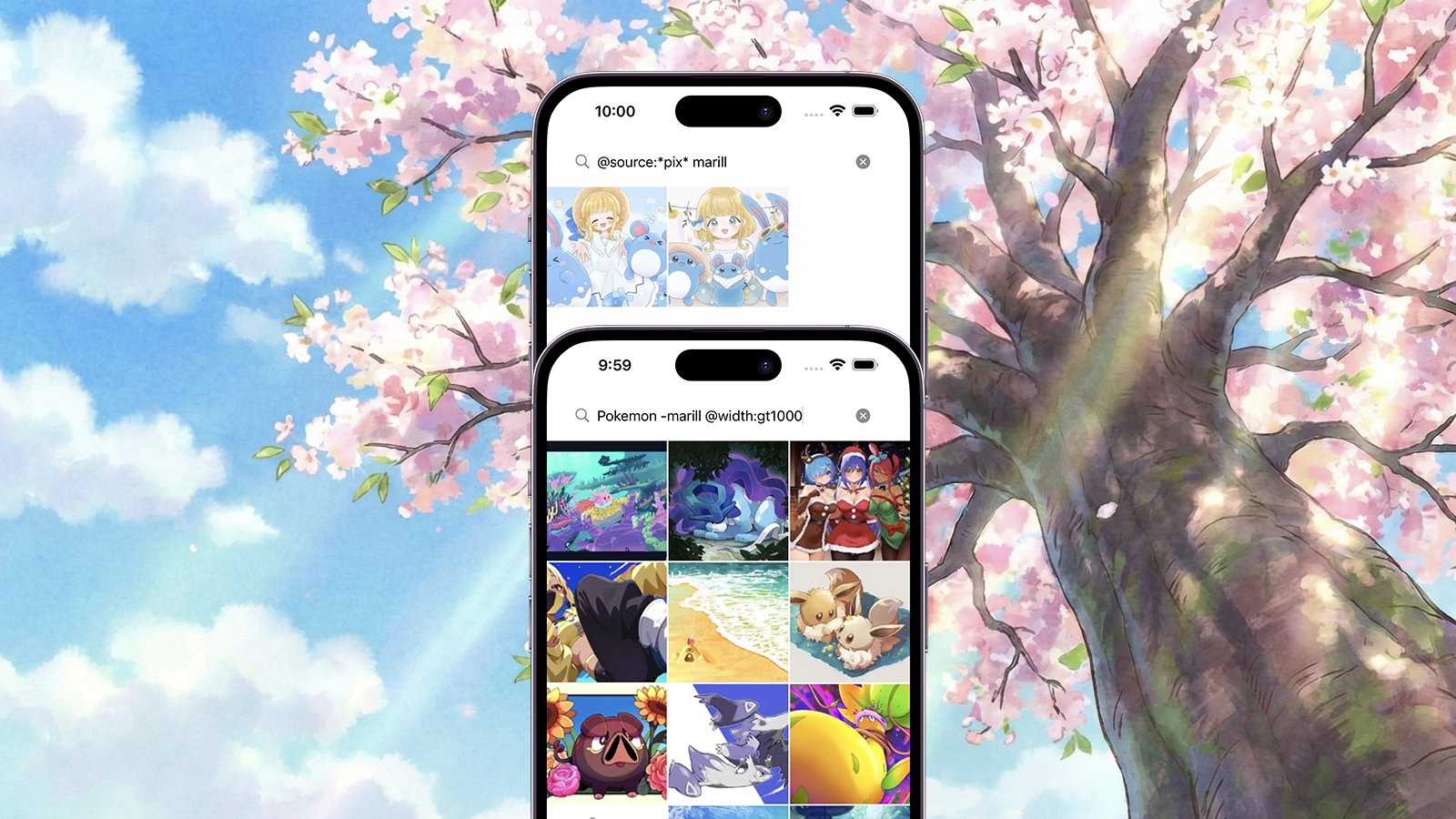
When it comes to Booru websites, being able to search for posts using a tag system is at the core of the experience. Boorus, as dedicated imageboards, can host thousands — if not millions — of images covering an enormous range of topics.
If you’ve used a Booru site before, you already know how powerful this system is. You can combine standard tags such as card_captor_sakura, summer, and daidouji_tomoyo to find images where Daidouji Tomoyo, from Cardcaptor Sakura, appears in a summer setting.
More advanced users also know that Booru tag systems often support wildcard searches. For example, if you like one of the main characters from the anime oshi_no_ko—Ruby’s brother—but you’re not sure whether his tag is minato_aqua or something slightly different like minato_agua, you can search using minato_*. This returns every post with a tag that starts with minato_, making it easy to discover the correct character tag.
Mignori for iOS lets you build and maintain a local gallery of posts you’ve collected across multiple Boorus. As these galleries grow over months or even years, we believe that offering the same powerful search experience locally isn’t just a nice-to-have feature—it’s a requirement.
For this reason, Mignori implements an intuitive local search system that stays faithful to the tag-based workflow Booru users are already familiar with. At the same time, we’ve extended it with additional capabilities designed specifically for searching content on-device, without relying on servers or external indexes.
Searching Your Local Gallery in Mignori
Basic Tag Search
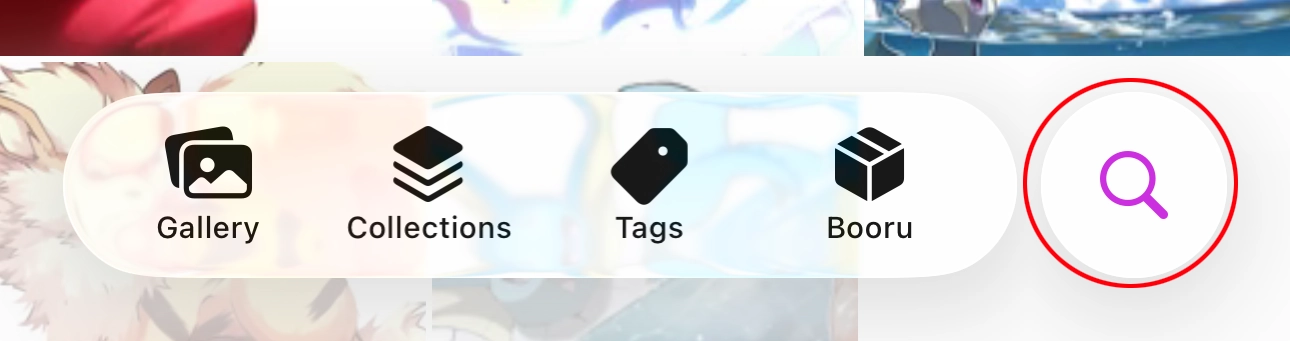
To access the Local Search feature, tap the magnifying glass icon on the tab bar.
If you already have images or videos in your gallery, you likely already know how basic tag searches work. The same way you search on remote Booru websites also applies to local searches in Mignori.
You can search your local gallery using tags such as pokemon, pikachu, or card_captor_sakura. Wildcard searches are also supported using an asterisk (*). For example, *_uniform will return all posts with tags that end in _uniform, such as school_uniform or office_uniform. Likewise, purple_* will match tags like purple_eyes, purple_clothes, and more.
Wildcards can be placed on either side of a tag, and you can use more than one wildcard in a single search.
Important note: Mignori normalizes all tags to be lowercased and underscore-separated. If you use Booru websites that rely on different separators or casing, keep in mind that Mignori will convert them to this format internally. For example, a tag such as “My Little Pony” will be stored and searched as my_little_pony.
If your searches don’t return the expected results, this normalization step is often the reason.
Advanced Searches with Property Filters
Property filters are where Mignori brings its own power to local post searches. While tags let you search for posts based on what they depict, property filters let you search based on their actual characteristics—such as image width, height, source, and more.
Using property filters doesn’t require a separate UI or anything fancy. You simply write the property name prefixed with an @ symbol, followed by a colon and the value you want to match.
For example, if you want to search for all card_captor_sakura posts that have an exact width of 500 pixels, you can write:
card_captor_sakura @width:500
This query combines a traditional tag search with a property constraint, returning only posts that match both conditions.
Property searches can be more complex. For example, suppose you want to change your desktop wallpaper and you’re looking for a legend_of_zelda image that is at least 1920 × 1080. You can perform the following search:
legend_of_zelda @width:gte1920 @height:gte1080
Here, gte stands for Greater Than or Equal. If you’re a programmer, you can also write @width:>=1920. Other supported operators include gt, lt, and lte. If no operator is specified, the search defaults to an exact match.
But wait—you actually have a lot of legend_of_zelda images that fit that description. You still get many results, so you need to narrow it down further. You remember that the image you’re looking for was marked as a favorite. You can refine your query like this:
legend_of_zelda @width:gte1920 @height:gte1080 @favorite:true
With this query, Mignori will return all legend_of_zelda images in your gallery that are suitable widescreen wallpapers and have been marked as favorites. Neat!
There are many property filters available in Mignori. They are organized by property type, and each property accepts specific kinds of values.
Boolean Properties
@favorite
Boolean properties accept either true or false. If no value is specified, both values are matched.
Numerical Properties
@width@height@score@size(supports additional features)@duration(currently disabled, video-only)
Numerical properties can match exact values or ranges using lt (Less Than), lte (Less Than or Equal), gt (Greater Than), and gte (Greater Than or Equal).
The @size property is special. By default, it searches by file size in bytes, but you can also specify kb (kilobytes), mb (megabytes), or gb (gigabytes) to avoid doing mental math.
Examples:
@size:1024— exactly 1024 bytes@size:gte1024— greater than or equal to 1024 bytes@size:256kb— exactly 256 kilobytes@size:lte256mb— less than or equal to 256 megabytes@size:gt1024gb— greater than 1024 gigabytes
The @duration property is currently unused, as Mignori cannot yet determine the length of locally saved videos.
String Properties
@type(imageorvideo)@source@extension@md5@sha1@sha256@sha512@url
String properties support both exact matches and wildcards. Use @type to filter by post type—only image and video are supported values.
The @source property lets you search for posts from specific sources. Since sources can be broad, wildcards are often useful, such as:
@source:*pixiv.org*
The @extension property lets you match filename extensions, such as @extension:jpeg, @extension:jpg, @extension:gif, @extension:mp4, and @extension:webm
Hash-based searches (@md5, @sha1, @sha256, @sha512) are also supported and accept wildcards at the beginning and end of the value.
The @url property contains the original location where a post was hosted. For example, you can search for all posts fetched from a specific Booru using:
@url:*safebooru.org*
@url:*pokebooru.com*
Date Properties
@created
Date properties allow searching by specific dates or date ranges using wildcards. Examples:
@created:2026*— all posts added to your gallery in 2026@created:202601*— all posts added to your gallery in January 2026@created:20260119*— all posts added to your gallery on January 19, 2026@created:2026011918*— all posts added to your gallery on January 19, 2026 at 6 PM
With these property filters, you can precisely search for almost anything in your local gallery. This same system also powers Smart Albums, allowing Mignori to organize your content automatically using the exact same rules.