
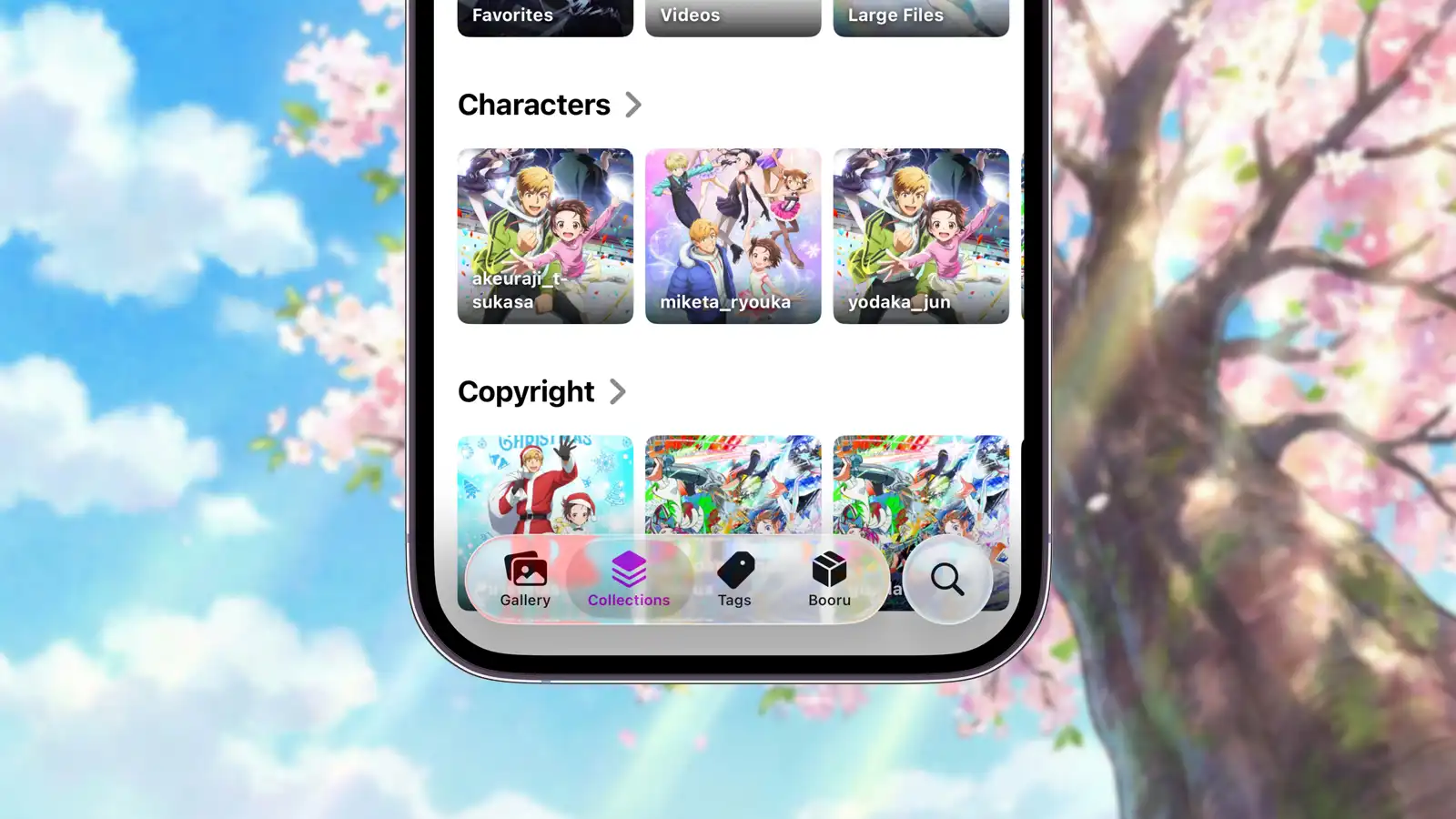
Mignori Beta with build number 26010 contains a working version of the Collections feature.
From the initial development stages, Mignori had one clear goal in mind: to let users catalog and organize their gallery contents exactly how they want. The latest Mignori Beta finally allows you to do that.
If the Gallery tab lets you see all your saved posts at a glance, the Collections feature lets you group them together or define smart criteria to automatically group posts into a single container.
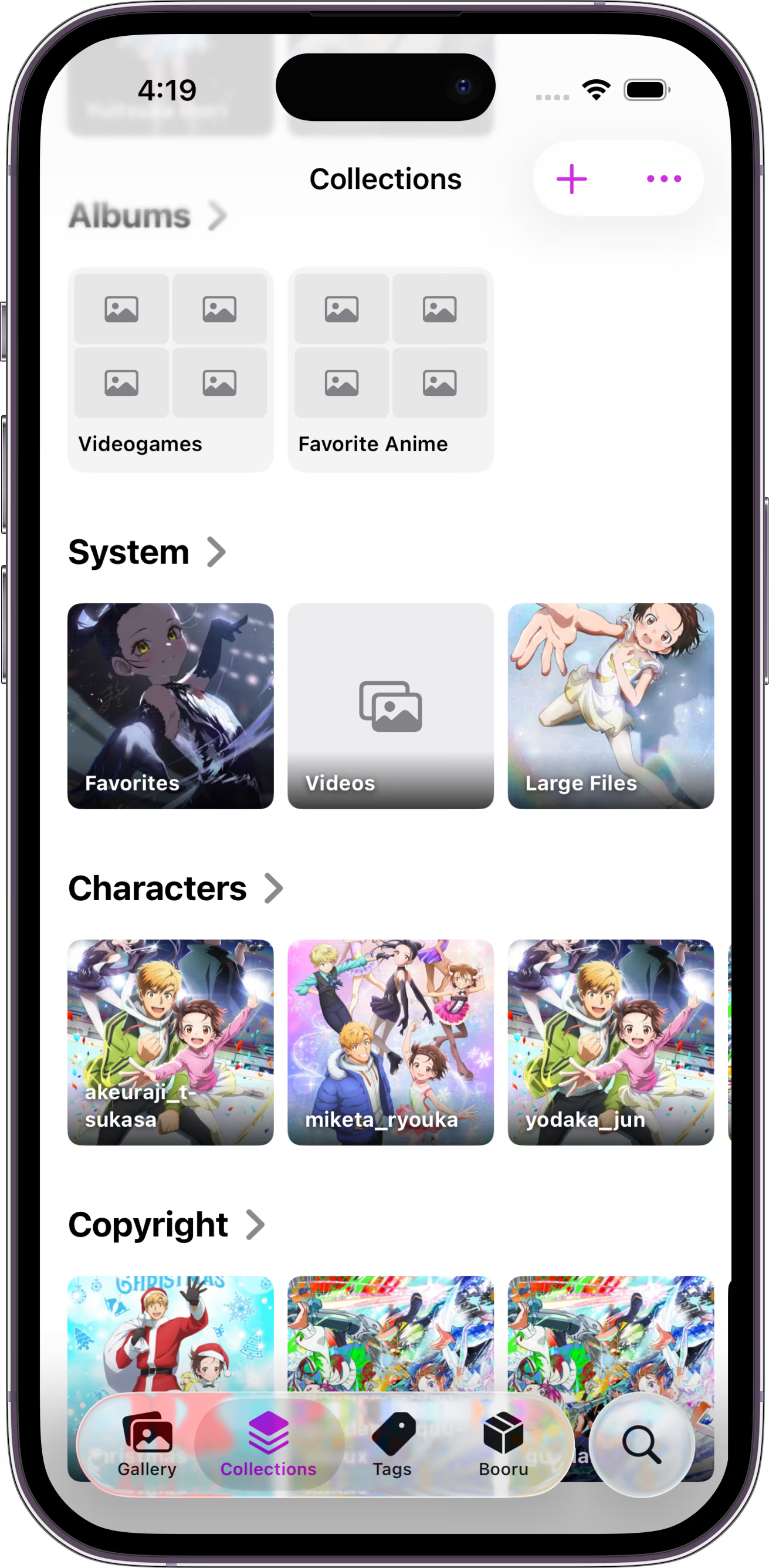
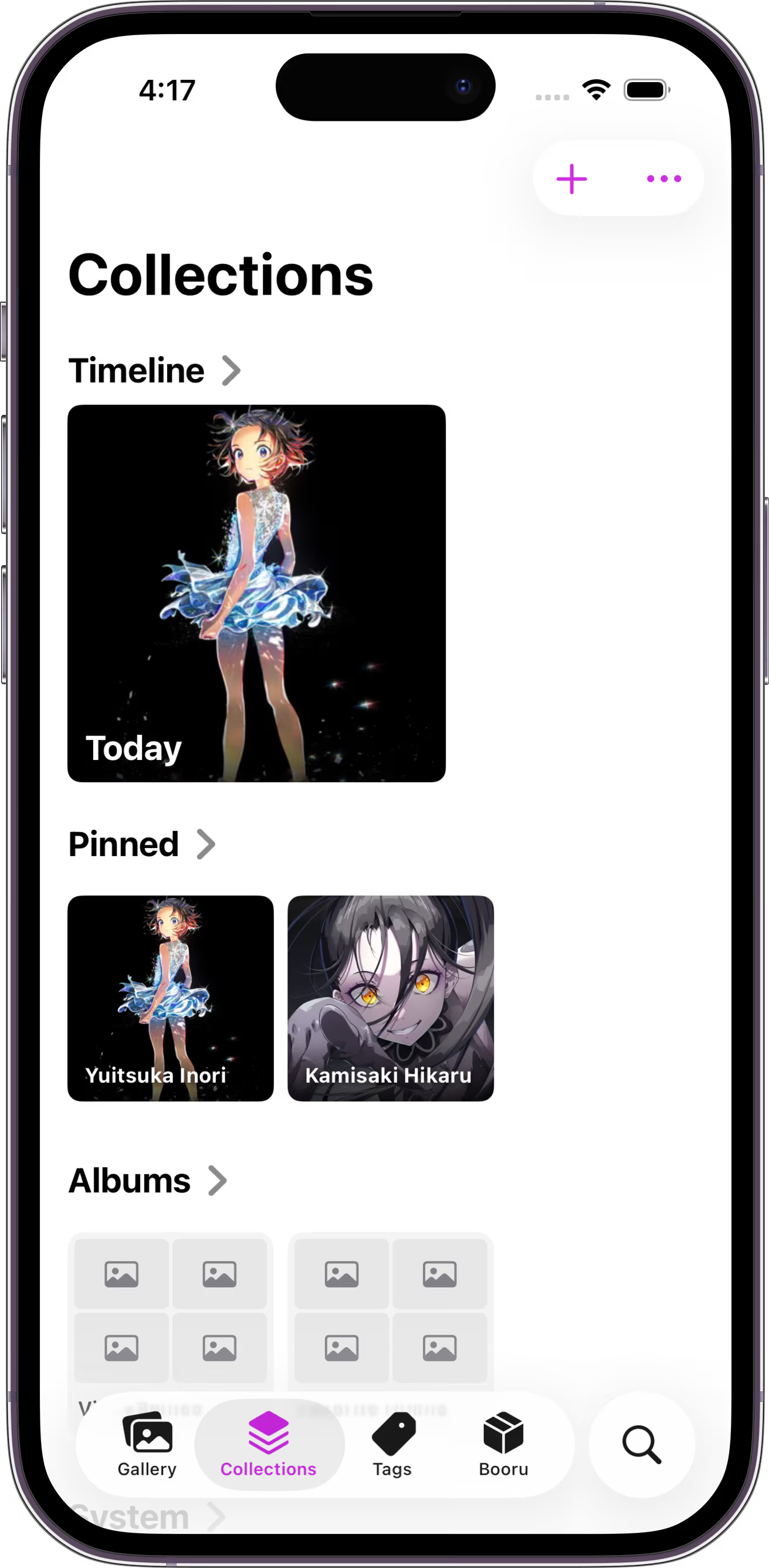
Collections were designed to feel immediately familiar, so we took many design cues from Apple’s Photos app on iOS. When you navigate to the Collections tab, right next to the Gallery tab, you’ll see a grid of albums you can start exploring right away.
A Timeline of Posts
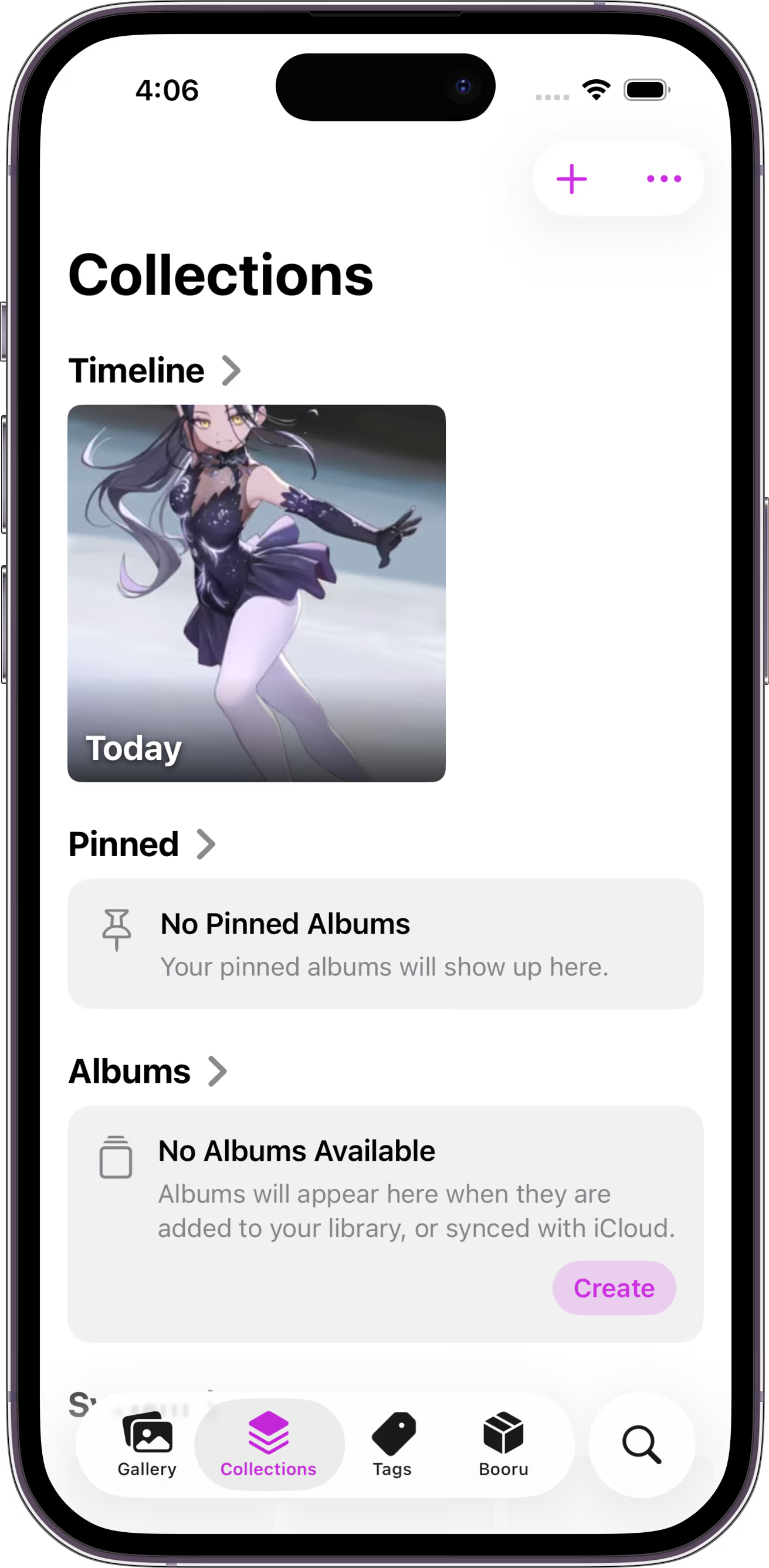
By default, you’ll see a lot of system-created albums that let you rediscover your own gallery over time. At the top of the screen, you’ll find a timeline of saved posts. Albums in the Timeline section are grouped by time-based criteria such as posts saved today, yesterday, this month, previous months, or even previous years.
As time goes by and your Mignori collection grows, this feature lets you browse back in time—finding the fanart that once touched your soul.
As you keep scrolling, you’ll find a section for your pinned and user-created albums. These deserve their own section, which we’ll cover shortly. For now, let’s focus on albums created automatically by the system.
The System section contains several practical albums. From here, you can quickly access posts you’ve marked as favorites, any videos you’ve saved locally, and any large files—useful if you ever want to audit how much storage Mignori is using.
Tag-Based Ephemeral Albums
Things get more interesting as you scroll further. You’ll find albums created automatically based on the posts that already exist in your gallery. This feature is 100% AI-free. Every album in this section is generated using information already present in the post and its tags.
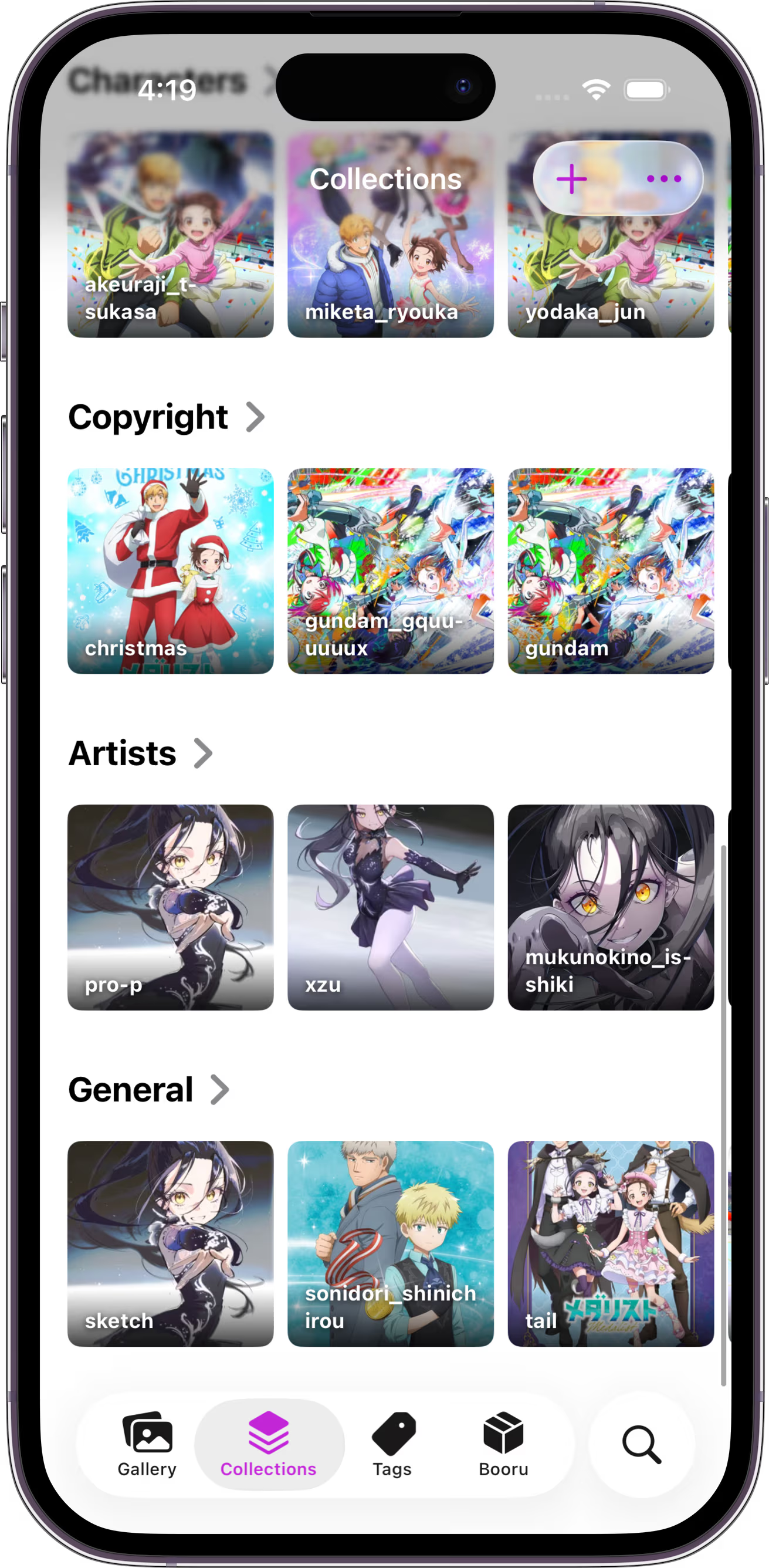
These albums are ephemeral: they are generated dynamically and only exist as long as the underlying tags exist.
- The Characters section contains albums created automatically from character tags (also known as green tags).
- The Copyright section contains albums generated from tags related to anime, videogames, or other specific works (also known as purple tags). For example,
shingeki_no_kyojinandmedalistare copyrights, as arelegend_of_zeldaandsilent_hill. - The Artists section contains albums generated from artist tags (also known as red tags). This is a great way to discover your next favorite fanart artist.
- Finally, General contains albums generated from general-purpose tags (also known as blue tags). These can help you discover recurring themes or attributes in the posts you save—sometimes things you didn’t even realize you liked.
Because these albums are tag-based, they are ephemeral by nature. If the tags that generate them are removed from your gallery, the corresponding albums will disappear as well.
The Characters, Artists, Copyright, and General sections rotate their contents frequently—often multiple times per day. The goal is to help you rediscover and reconnect with your gallery. If you once loved a post but time passed and you forgot about it, Collections gives you a way to fall in love with it again.
User-Created Albums
For many users, the most important part of Collections is the ability to create and maintain albums exactly the way they want.
Mignori supports three types of containers you can use to organize your posts: Collections, Albums, and Smart Albums.
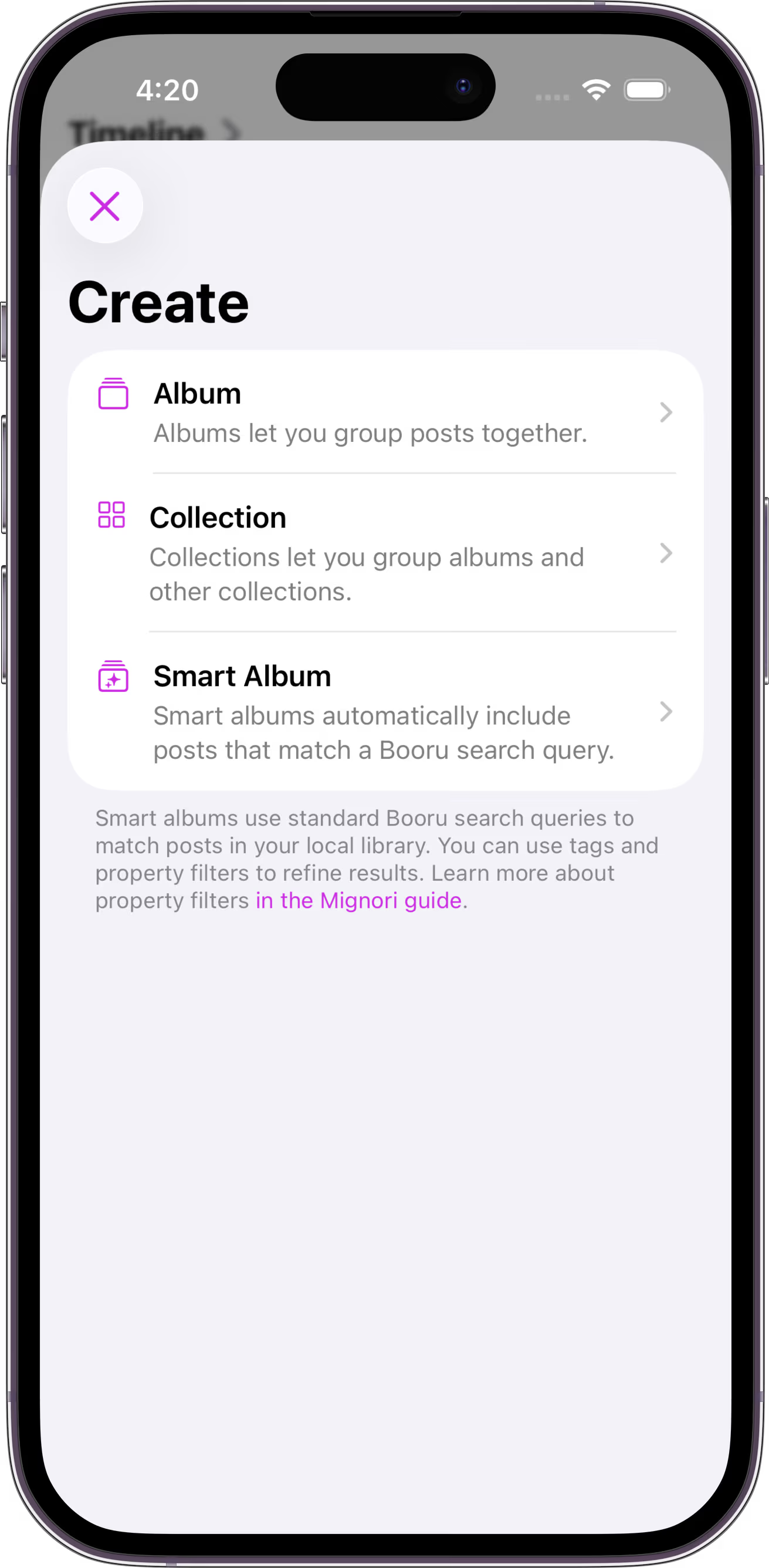
- Albums let you group posts manually. You create an album and explicitly choose which posts belong to it.
- Smart Albums automatically group posts based on a query. You can write standard booru-style tag queries, or use Mignori’s Property Filters to group posts by additional criteria. The query language is the same one used when you search your local collections. If you know how to search your gallery, you already know how to create Smart Albums.
- Collections let you group Albums, Smart Albums, and other Collections under a single parent container. You can think of Collections as folders, with the limitation that they can’t store posts directly.
To give you a concrete example, we’ll walk through an organization scheme for posts related to the anime Medalist. Medalist is an anime that deserves a lot of love, so we’ll honor it by carefully organizing fanart and official art for its characters.
When you add posts to your Gallery, they become eligible for use in Collections. Posts that haven’t been explicitly saved to your Gallery cannot participate in the Collections system. This tutorial assumes you already have a few Medalist posts (or posts from your favorite anime) saved and ready to organize.
Tap the + button in the top-right corner of the Collections screen. You’ll be prompted to create a new container.
We’re going to build the following hierarchy:
Favorite Anime > Medalist (Collection)
Favorite Anime > Medalist > Characters (Collection)
Favorite Anime > Medalist > Characters > [CHARACTER NAME] (Smart Album)
Favorite Anime > Medalist > Official Art (Album)
We want quick access to posts related to anime and videogames, so we’ll start by creating a Collection called Favorite Anime. Go ahead and create it now. You can create the Videogames collection too, but we will not be using it for now.
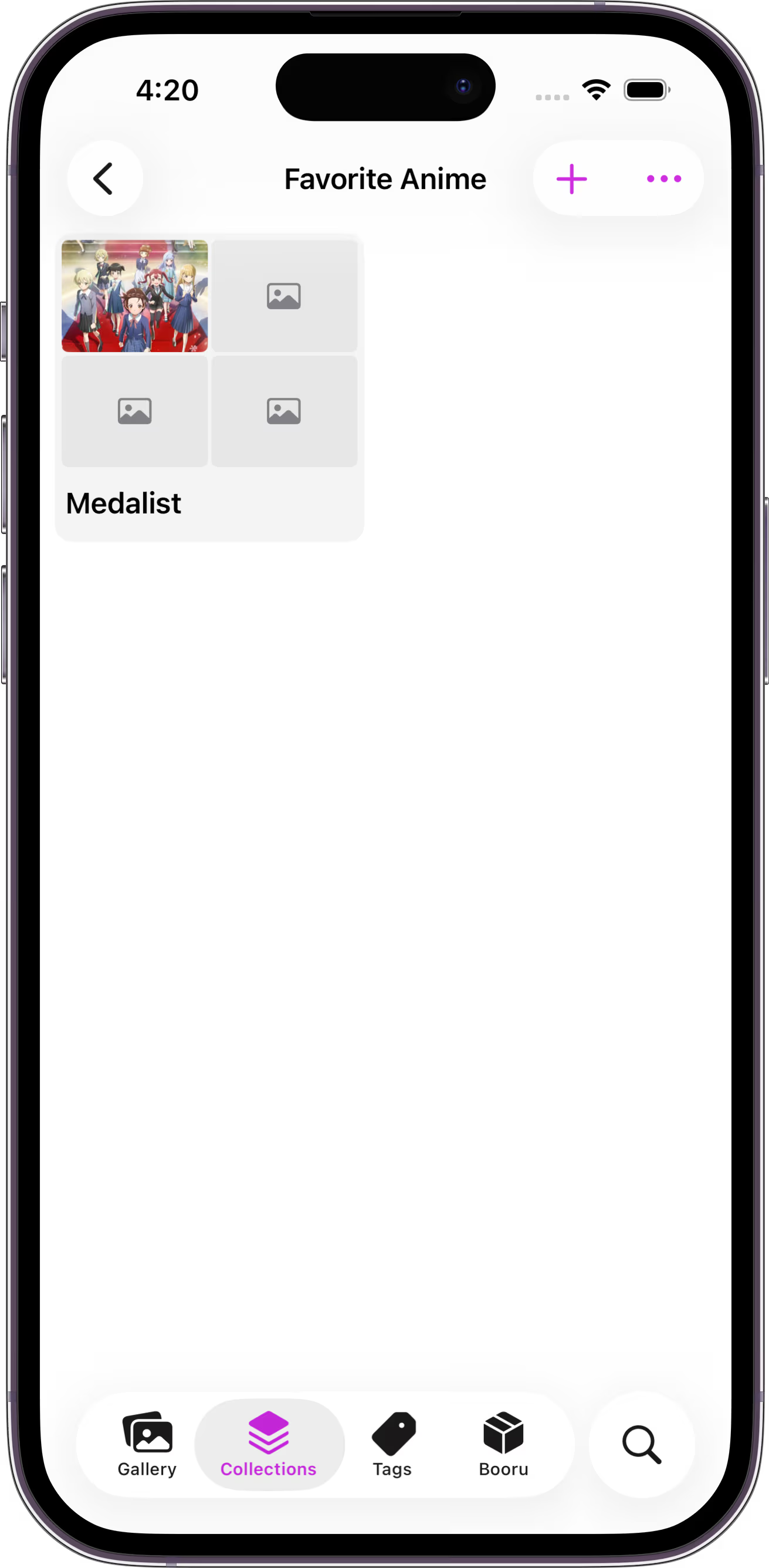
Next, open the Favorite Anime Collection and create another Collection called Medalist. At this point, your tiles won’t have images yet—that’s expected, since no albums exist inside it yet.
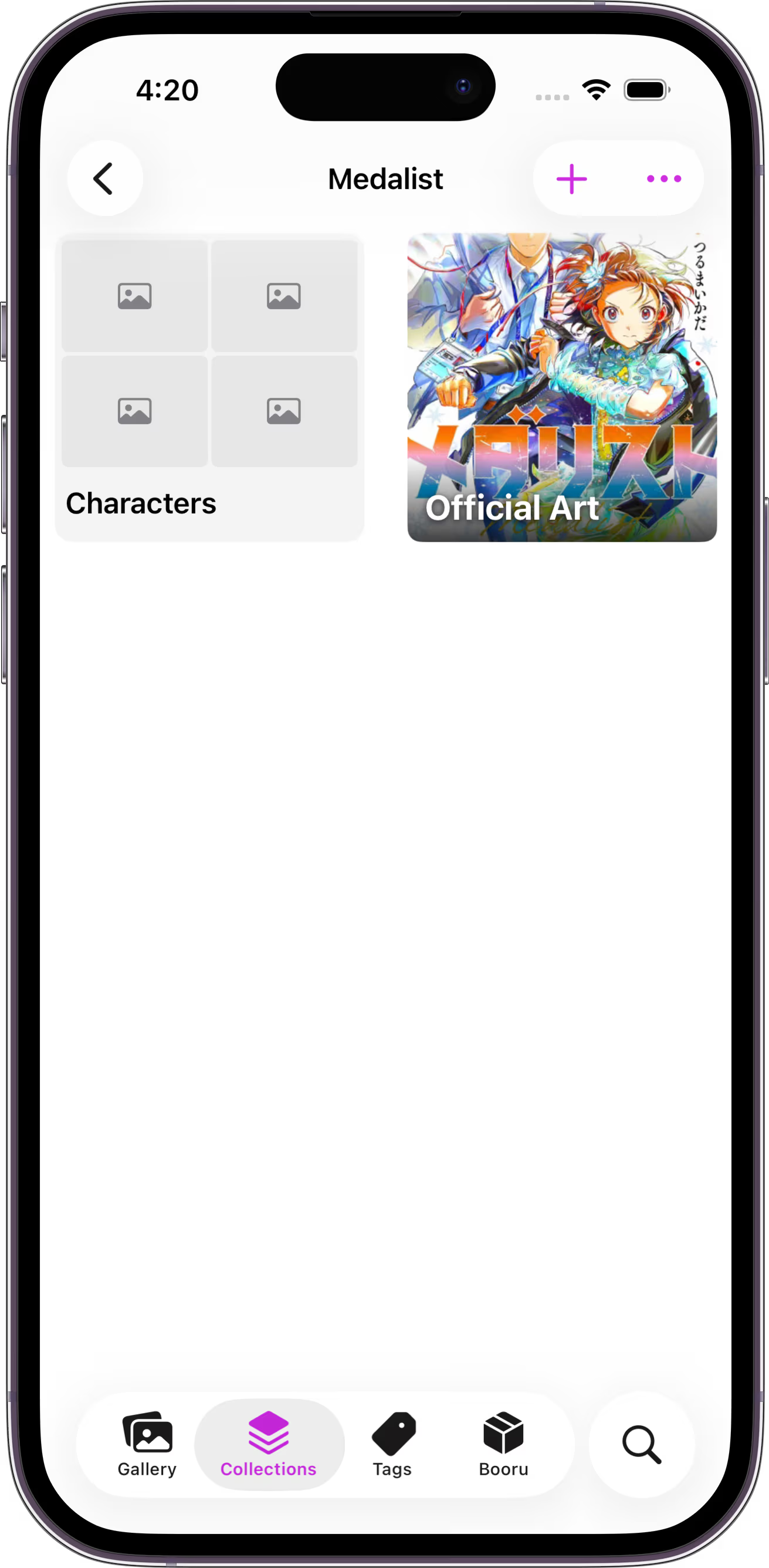
Now tap Medalist, then tap + again. This time, create an Album called Official Art. Open the album and tap + once more to manually add posts. Select all posts that come from official sources rather than fanart (if you want to follow this tutorial closely). Once added, the selected posts will appear in a grid.
Go back one screen, tap +, and create a new Collection called Characters. This Collection will hold character-related Smart Albums.
At this point, your Medalist screen should look something like this:
Open the Characters Collection and tap + to create a new container. Choose Smart Album. You’ll be prompted for an album name and a booru query.
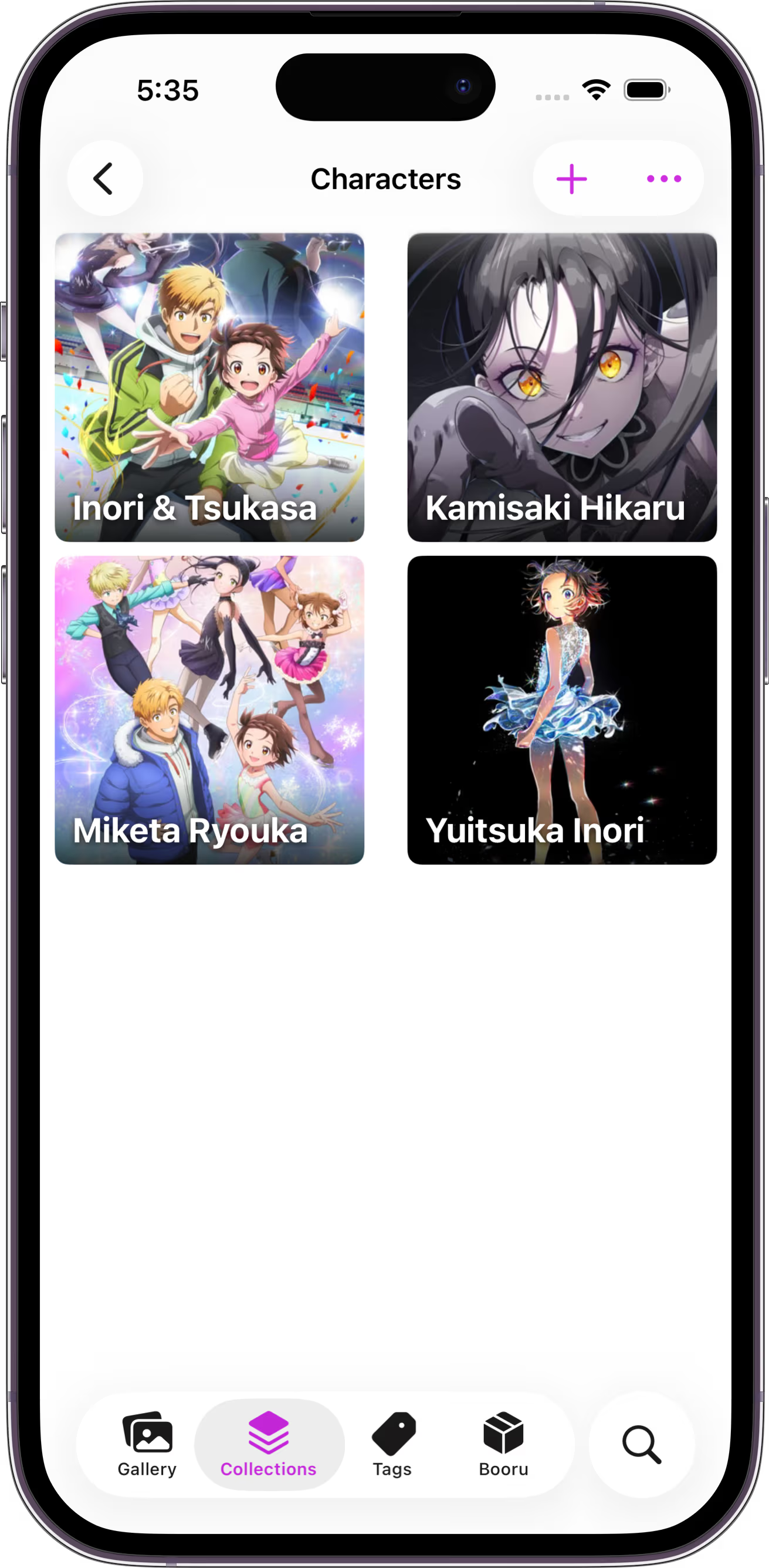
For our first Smart Album, name it Kamisaki Hikaru and use the query kamisaki_hikaru. Repeat this process for other characters such as Yuitsuka Inori (yuitsuka_inori) and Miketa Ryouka (miketa_ryouka).
We’ll also create a Smart Album that groups posts where both Inori and her coach appear. We know the coach’s last name is Tsukasa, but we don’t know the first name. Name the album Inori & Tsukasa and use the query:
yuitsuka_inori *tsukasa
By using *tsukasa, we tell Mignori to match any tag that ends with “tsukasa”. This highlights how flexible Mignori’s search system is, allowing you to build powerful Smart Albums without spending hours manually curating your gallery.
Once finished, your Characters Collection should look similar to this:
Pinning Collections
Albums, Smart Albums, and Collections can be pinned so they’re always accessible from the root of the Collections tab or from the dedicated Pinned album. This way, no matter how deeply nested your favorite containers are, you can always keep them within easy reach.
Summary
Collections is the ideal feature for people who want to save booru posts locally while keeping them separate from their default Photos library. To make getting started easier, we intentionally designed Collections to feel familiar by borrowing concepts from Apple’s Photos app.
When iCloud sync is enabled for Mignori, your Collections—alongside your Gallery, saved servers, and more—will sync automatically across all Apple devices where you use Mignori.
Next Steps
A future Mignori beta will allow you to add and remove tags from posts as you see fit. This will make Smart Albums even more powerful.
For example, it would have been better if Official Art were a tag rather than a manual album. With custom tagging, you could simply create a Smart Album using a query like:
medalist official_art
This is just the beginning of what Collections will be able to do.